BIOS From the Motherboard: The Definitive Guide to Understanding, Configuring, Updating, and Reprogramming
Context: date of posttagby the author of the posttagin translators: : date of posttagum : author of the posttagem
Table of Contents
BIOS From the Motherboard: The Definitive Guide to Understanding, Configuring, Updating, and Reprogramming
The Complete Guide to BIOSFrom Basic to Advanced
Your computer won't turn on. The screen remains black, showing no sign of life, and a feeling of panic begins to rise. You have important work, precious photos, and your entire digital life stored there. What could be wrong?
Often the proThe problem is not with Windows or an expensive component like the... processation, but in a fundamental element that many ignore: the BIOSThe failure in BIOS A faulty motherboard can turn a PC or notebook into an expensive paperweight, preventing access to everything.
The solution, however, may be simpler than you imagine and within your reach. Understanding what it is BIOSHow to configure it and, crucially, how to perform a proper update can bring your equipment back to life and even improve its performance.sempI have.
This complete guide was created to demystifystistay BIOSLet's explore everything from the most basic concepts to the... proMore advanced procedures, such as resetting, updating, and rewriting with a USB drive and a DVD burner.
You will learn how to navigate your settings, understand the importance of... chip BIOS and discover how a simple file, often with the extension .bin, could be the key to solving proComplex problems. Keep reading to master the system that kickstarts your entire PC universe.
BIOS is the acronym for Basic Input/Output Syshas, or Basic Input/Output System. Think of it as the primeiro proThe program your computer runs when you press the power button. It's firmware, a type of software stored on a small chip. chip memory on the motherboard.
The main function of BIOS It involves initializing and testing the system hardware, such as proprocessor, RAM, video card and diskpositivostorage devices (HDDs and SSDs). This processo is called POST (Power On Self TestIf the POST is successful, the BIOS procures an operating system (such as Windows) on one of the diskspositivostorage devices and pass control to it.
If your PC won't turn on or displays error messages even before the Windows logo appears, the cause... proIt is probably related to BIOS From the motherboard.
The Difference Between BIOS and UEFI
You may have already heard of UEFI (Unified Extensible Firmware InterfaceUEFI is the modern successor to BIOS. While the BIOS Traditional systems have a text-based interface and limitations, such as support for disks up to 2TB, while UEFI offers a user-friendly graphical interface (which can be controlled with the mouse), faster boot times, and support for advanced security features.
Despite the differences, the fundamental function is the same: to initialize the hardware and load the operating system. Most modern computers use UEFI, but the term “BIOS" is still widely used generically to refer to this boot firmware."
Therefore, when we talk about "accessing the BIOSor "update the BIOS of the Motherboard”, the proThis agreement is valid for both systems. BIOS legacy systems as well as newer ones with UEFI.
Where the BIOS Is it stored? Chip BIOS from the Motherboard
O BIOS It doesn't reside on your hard drive, SSD, or M.2 card along with Windows. It lives on a specific physical component: the chip BIOS.
This is a chip of non-volatile memory (meaning it retains information even without power) soldered or embedded in motherboard his PC ou notebook.
There are different types of chips, like EEPROM or Flash ROM, which allow the BIOS Stay updated. It is in this chip that the software that controls the startup of your plate It is recorded. Damage to this. chip or corruption of the software within it are common causes for a computer that doesn't care.
How to Access and Configure the BIOS from the Motherboard
O access ao BIOS is primefirst step towards diagnosisstiParts and accessories proproblems, change the boot order or set up components. The method is simple!
Step-by-Step Guide to Accessing the BIOS
Restart or turn on your computer: Access to BIOS it is only possible in primeeight seconds after startup.
Press the Correct Key: As soon as the computer turns on, before the Windows logo appears, you need to repeatedly press a specific key. This key varies depending on the motherboard or laptop manufacturer.
Common Access Keys:
DEL (Delete): More common in desktops (PCs) with motherboards from ASUS, Gigabyte, MSI, etc.
F2: Common in notebooks from Dell, Acer, Lenovo and some PCs.
F1, F10, F12 or ESC: Used by other manufacturers such as HP and Lenovo.
The startup screen usually displays a quick message such as "Press DEL to enter Setup" or "Press F2 to access the BIOSIf you can't see it in time, consult your motherboard or laptop manual, or search online for your specific model.
Navigating and Understanding the Main Settings
Once inside the BIOSYou will see an interface that can range from a simple blue and white text menu to a colorful graphical interface. Regardless of the appearance, the sections are generally similar.
Main: Displays basic system information, such as type of proTerminator, amount of RAM, date and time.
Advanced Allows set up details about or proprocessor, USB ports, SATA and other integrated peripherals on motherboard.
Boot (Initialization): One of the most important sections. Here you define the order in which the BIOS proThis will restore an operating system. For example, you can configure the PC to try to boot from a USB flash drive before the hard drive, which is essential for... to install o Windows.
Security Allows you to define a senha protocols for BIOS from the motherboard, preventing other people from changing the settings. There may also be options for a senha system startup.
Save & Exit This is where you save the changes made and restart your computer. There's also an option to exit without saving or to load the factory default settings (great for reverting a bad configuration).
The Update of BIOS (Update): When and Why to Do It?
A update do BIOS of the Motherboard, also known as “flashing the BIOS" Or Update, Is prosub-cessstiTo replace existing firmware with a newer version. Motherboard and notebook manufacturers release these updates to fix bugs, improve compatibility with new hardware (such as proterminators and memories), improve system stability, and sometimes fix security flaws.
FromtagMaintain the BIOS Updated Motherboard
Support for New Hardware: One of the update can allow your motherboard recognize a pronewly released terminator from the same family.
Bug Fixes: Resolves proinstability problems, such as random crashes or failures in disk recognition.positivos.
Improvement ofsempI have: In some cases, a Update It can optimize energy management or communication between components, resulting in a faster and more efficient system.
Security Patches: It closes vulnerabilities that could be exploited by malicious software.
Risks and Precautions: What Could Go Wrong?
Despite the benefits, the update do BIOS from the motherboard is a prodelicate cementation. A failure during the proThe process can cause your motherboard to "die," meaning it becomes unusable. The main risk is a power interruption during the update. If the power goes out in the middle of the process... proaccess, the chip BIOS It can end up with corrupted firmware, and the computer doesn't care moreover, then a re-recording of is necessary. chip, as shown throughout the text.
Essential Precautions:
Check the Correct Version: Download the file update from your motherboard or notebookUsing a file for a different model, even if it looks similar, will result in a failure.
Do not interrupt the ProAccess: Never turn off or restart your computer during the update.
Use a Reliable Power Source: For notebook, make sure that the battery Ensure it is fully charged and remain plugged into the wall outlet. For a PC, the use of a UPS (uninterruptible power supply) is highly recommended.
If your motherboard is unstable or incompatible with a new component, proTerminator? An update of BIOS This could be the solution. We offer a file. bin de BIOS Already updated with security and guarantee. Consult Our Archive Services bin de BIOS updated motherboard
O proThe exact process may vary, but it generally follows a common logic. The most crucial step is to obtain the file de BIOS correct.
1. Identifying your Motherboard and Current Version of BIOS
Before download For anything else, you need to know the exact model of your motherboard and the version of... BIOS which is installed.
On Windows: Pressure Win + R, type it msinfo32 and press Enter. The "System Information" window will open. ProSearch for “BaseBoard Manufacturer” (or “Baseboard Manufacturer”),Product BaseBoard” (or “Product of the base plate) and “Version/date of BIOSWrite down this information.
2. Downloading the Update File
Go to the official website of your motherboard manufacturer (e.g., ASUS, Asrock, Gigabyte, MSI) or your notebook (Eg Dell, HP, Lenovo, Samsung).
ProFind it in the "Support" or "Downloads" section.
Please enter the exact model of your motherboard or notebook.
On the downloads page, find the category “BIOS" or "Firmware".
You will see a list of versions of BIOS From the motherboard, list the oldest to the newest model. Compare the date and version with the one you noted down.
Read the release notes for each version. Sometimes it's necessary. to install Try an intermediate version before jumping to the latest one.
Download o file de BIOS the most recent motherboard that isproprivate for your system. Usually, it will come in a file. compactado (.zip).
Inside the .zip file, you will find the file de BIOS from the motherboard update file that contains part of the file .bin complete with a specific manufacturer name (e.g., .CAP in ASUSThere will also possibly be an update utility and a text file with instructions.
3. Update Methods
There are two main methods for carrying out the Update.
Method 1: Utility of BIOS (Recommended)
This is the safest method. Most modern motherboards have a built-in update utility. BIOSUEFI (usually called EZ Flash, M-Flash or Q-Flash).
Extract the file BIOS from the motherboard in the .zip file you downloaded.
Copy this file to the root of a USB drive formatted in FAT32.
Restart your computer and log in to BIOS (using DEL, F2, etc.).
ProUse the update tool (usually in the “Advanced” or “Tool” section).
Select the file Update on the flash drive.
Confirm the update and wait. proThe process may take a few minutes. The computer will restart automatically when finished.
Method 2: Utility via Windows
Some manufacturers offer a proA program that performs the update directly from Windows.
Close all others programs.
Run the update utility that came with the file do BIOS Or download it separately from the manufacturer's website.
Follow the on-screen instructions. proThe grass will locate the fileverify its integrity and start the process.
The computer will restart to complete the installation.
Prohealing file .bin Is this correct for your motherboard? Our library contains a vast collection of files. BIOS For thousands of models of PCs, notebooks, TVs, monitors, receivers, and many others. Find and download the file you need safely and quickly.
Solving ProCommon problems of BIOS from the Motherboard
Even with all the care, proProblems can occur. A PC that doesn't careStrange beeps or error messages during startup are classic symptoms.
The computer won't turn on after an update attempt.
This is the worst-case scenario. If the screen goes black and nothing happens, the BIOS proIt is probably corrupt. But all is not lost.
USB BIOS Flashback (or similar): More advanced motherboards (ASUS, MSI) have a function that allows you to update the BIOS even without proA processor or memory card has been installed. You need a USB drive with the... file de BIOS The motherboard, in some cases renamed to a specific name (see the manual), is inserted into a designated USB port on the back of the board. By pressing a button, the motherboard reads the file and rewrites the... chip, restoring the system.
How to Reset the BIOS (Clear CMOS)
Um reset do BIOS The motherboard reset restores all settings to factory defaults. This is useful if you made a wrong configuration that prevents the computer from turning on (such as an unstable overclock) or if you forgot the senha do BIOS From the motherboard.
There are two main methods for the reset:
Clear CMOS Jumper:
Unplug the PC from the power outlet.
Open the gabinete and locate in motherboard a set of 2 or 3 pins labeled as CLR_CMOS, JBAT1 or something similar.
If there are 3 pins, a jumper (small piece of plastic)sti(with metal inside) will be covering pins 1-2. Move it to pins 2-3 for a few seconds and then return to the original position.
If there are 2 pins, use a screwdriver to create a short circuit between them for a few seconds.
Removing the CMOS Battery:
Unplug the PC from the power outlet.
Locate a battery silver, round and flat on the motherboard (model CR2032).
Carefully remove the battery from its socket.
Wait about 5 minutes. That's enough time for the chip CMOS, which stores the settings of BIOSlose energy and fade away.
Replace the battery and turn on the computer.
after the resetYou will receive a message informing you that the settings have been reset and you will need to log in. BIOS to reconfigure the date, time, and boot order. If the reset doesn't solve the problem, just reprogram the... BIOS from the Motherboard with the file bin.
I forgot my password. BIOS from the Motherboard
If you have defined a senha of access to BIOS and forgot about it, the only solution is to carry out a reset do BIOS using one of the methods described above (jumper or removal of batteryThis will clear all settings, including the password. If it doesn't remove the password, just reset it. BIOS from the Motherboard with the file bin.
The Ultimate Solution: The Archive .bin Right for You BIOS from the Motherboard
Too many proproblems, from a notebook, PC, TV, Receivers and Monitor that doesn't care Even compatibility issues can be resolved with the right tool: the file .bin de BIOS The correct motherboard file. Finding and using the exact file for your equipment model is the most critical step in the entire process. prorecovery or update process. An incorrect file can cause permanent damage, while the correct file can be the salvation of your disk.positivo.
The difficulty often lies not in proconcession, but in locating a file reliable, especially for older equipment or lesser-known brands whose support websites may be outdated or offline. This is where having access to a centralized and reliable repository of files comes in. BIOS It makes all the difference. That's why... Seventec Smd It helps you at this time by providing files. bin Quality originals.
Master the BIOS It's about having fundamental control over your computer. You've learned what it is, how to access it, and the importance of a... update and how to solve proserious problems through a reset or one Update firmware. Knowledge about the chip BIOS from the Motherboard and proaccess to to install a new file firmware enables you to diagnosesticar and repair proproblems that many would consider the end of the line for a PC or notebook.
How to Re-record BIOS Step-by-Step Guide to Starting a Motherboard from the Boot Center using a USB Flash Drive
Your computer is experiencing instability, it doesn't recognize a proThe problem is either new or simply stopped working correctly. Often, the solution for these issues... procomplex hardware problems are in the reprogramming of BIOS. They proAccess, although feared by many users, is essential to ensure the compatibility and health of your system.
In this complete guide, you will learn exactly how to accomplish this. proA procedure with complete safety. Let's demystifystistay proThis guide will cover the firmware update process for your motherboard. You will learn how to identify the correct hardware information, prepare the necessary files, and perform the flashing without putting your equipment at risk.
Prepare your USB drive, write down your system information, and follow each step carefully. Mastering this technical skill saves time and money, as well as... proExtend the lifespan of your computer.
Safety Precautions Before You Begin
Re-record the BIOS The motherboard requires full attention. A failure during this process... proaccess can corrupt the chip from the motherboard, preventing the computer from turning on. Therefore, preparation is the most important step in the entire tutorial.
PrimeFor this, ensure a stable power source. If you are using a laptop, make sure the battery is fully charged and keep the device plugged in. For desktop computers, the use of an uninterruptible power supply (UPS) is highly recommended. A power outage during the reprogramming process will cause serious damage to the equipment.
Second, avoid doing this. proCause problems on stormy days or when the power grid is unstable. Close all proHeavy grams if you use methods via the operating system, although the method through the motherboard setup itself is... sempThat's the safest way. Never turn off the machine while the power bar is on. proprogress of the update andstiSee it running.
Identify your motherboard model.
You cannot install any files on your computer. The firmware of BIOS It is unique to each motherboard model and version. Installing the wrong file will result in total system failure.
To find the exact model in Windows, press the “Windows + R” keys on your keyboard. Type “msiType “nfo32” in the dialog box and press Enter. A System Information window will open on your screen.
ProLook for the lines “BaseBoard Manufacturer” and “Product BaseBoard”. Note this information carefully. Also check the line “Version/date of BIOS "Motherboard" to find out which edition is currently installed on your machine.
If you built your own PC, open the gabinete e proEncoding the name printed directly on the motherboard is an excellent alternative. Also pay attention to the "Revision" (Rev 1.0, Rev 2.0), as manufacturers often release different hardware versions for the same model.
Download the File bin de BIOS Correct Motherboard
With the model notes in hand, it's time to find the file. bin correct.
Use the search bar above on our website and enter your motherboard model to see the options; be sure to select the exact model of your motherboard.
On site Seventec Smd Choose one of the available updated versions; generally, the latest version includes all the fixes from previous versions.
Before downloading, read the release notes on your graphics card manufacturer's website. Some updates require you to install an intermediate version before upgrading to the latest one. The manufacturer sempre avisa sobre essas requeridades nas notas da página.
Download the file compactDownloaded to your computer. It usually comes in .ZIP format and contains the main file with extensions. .BIN.
Prepare your environment and the USB drive.
The safest method for re-recording the BIOS It uses the motherboard's native tool. For this, you will need a regular USB flash drive. You don't need a lot of storage space, as the files... BIOS They are very small.
Connect the USB drive to your computer. Open "File Explorer," right-click on the USB drive, and select "Format." Choose the "FAT32" file system. This format is the oldest and most universal, ensuring that the motherboard system can read the data.
Warning: Formatting the USB drive will erase all files stored on it. Back up your documents before proceeding. proNext, after formatting, extract the contents of the .ZIP file you downloaded from the website. Seventec Smd.
Copy the extracted file. .BIN Copy it directly to the root of the formatted USB drive. Do not place the file inside secondary folders, as this makes it difficult for the motherboard system to read.
Performing the Re-recording of BIOS from the Motherboard
Now you have everything. proenough to carry out the proProcedure. Keep the USB drive connected to the computer and restart the machine. The proThe following steps require you to access the system startup settings.
Accessing the Setup
As soon as the computer restarts and the screen lights up, repeatedly press the access key to BIOSOn most desktop computers, this key is "Delete" or "Del". On laptops, it's usually "F2", "F10", or "F12". Check your device's manual if you have any doubts.
Upon entering the interface of BIOS from the Motherboard, proUse the update tool. Each manufacturer uses a different name for this utility. ASUS It's called "EZ Flash," Gigabyte of “Q-Flash” and the MSI from “M-Flash”. Generally, these tools are located in the “Tool”, “Advanced” or “ tabs.Sys"It has info."
Running the Update
Select the flash tool and the system will ask where the update file is located. Choose your USB drive from the list of storage devices displayed on the screen. Navigate to the file. BIOS From the motherboard that you copied earlier, select it.
The system will ask for a final confirmation. Read the warning message and confirm that you want to... proContinue with the recording. From this moment on, do not touch the keyboard, do not click the mouse, and under no circumstances turn off the computer.
a bar of proThe number will appear on the screen. proThe entire process takes two to five minutes. When finished, the system will display a success message and the computer will restart automatically.
What to do after re-recording
When the computer restarts, it's common for it to take a little longer than usual to display video. primeThis time, the motherboard is recognizing the new firmware and reconfiguring the memory tests. Don't panic and wait for it to finish. profinalize process.
The system may display a screen asking you to press “F1” to reconfigure the initial options. Enter the setup again. As the BIOS The motherboard settings have been reset; you will need to reactivate functions such as the XMP profile for the RAM and adjust the boot order of your hard drive, SSD, or M.2.
Go to the “Save & Exit” tab and select “Save Changes and Reset”. Your computer will start the operating system normally. ProNo. You have successfully completed the re-recording and your hardware is up to date.
Solving Possible Problems Proproblems
If something goes wrong and the computer won't turn on after the update, there are a few recovery attempts. Many modern motherboards have a button called "Clear CMOS" on the back panel. Pressing this button for a few seconds with the PC unplugged forces the motherboard to reset to factory settings.
Another alternative is to remove the circular battery (CR2032) from the motherboard for about five minutes. This discharges residual energy and resets the chip memory. If your motherboard has the feature “BIOS "Flashback," you can try to rewrite the system using a specific USB port on the back, without even needing to turn on the computer.
Keeping your device's firmware up-to-date resolves memory incompatibilities and improves communication with... proNewly released terminators and critical security fixes. Follow these steps. sempwhatever you need and keep your system running smoothly.sempMaximum support and guaranteed stability.
If you are unsuccessful or your board is not compatible with reprogramming via USB drive, then reprogramming the... chip BIOS, as explained in the following steps.
How to Re-record BIOS Step-by-Step Motherboard Repair using a Programmer
Introduction
This technical manual aims to describe, in a standardized and... proprofessional, the proprocedures for re-recording and substituition of Chip BIOS from the Motherboard, applicable to plates that use chipwithout encapsulation SMD ou socket DIP/DIL.
Application and Compatibility Models
O proThe described procedure is similar for various types of encapsulation. SMD, although there may be slight variations depending on the model of chip or the motherboard.
The recording files of chip BIOS They can be found under different nomenclatures and generic names, such as:
File .bin
Firmware
File EPROM
File BIOS
File for Flash Memory
dump
Observation: Update files (.cap, .rom, .fd, among others) should not be used for direct re-recording of chipbecause they do not contain the complete firmware, which can cause errors and confusion in determining if the defect is in the firmware. BIOS It is indeed clear that this generates a great waste of time with unnecessary interventions.
File Manufacturers and Standards
This is a description for making the exchange. proprofessional of chip BIOS of the Motherboard. The most well-known manufacturers worldwide and these are applied proExamples of procedures include:
ProWithdrawal and Re-engraving of Chip BIOS from the Motherboard
1° Disconnect all types of power supply (including battery/cells) BIOS).
2° Check if the model of the board to be substithe file was deleted .bin has a BIOS or more. It's quite common for current models to have more than one. chip BIOS, such as:
BIOS MAIN, BIOS EC or even 3 or 4 chips with different firmwares on the board. In cases where there are two or more BIOS to perform the re-recording of chip correct.
3. Before removing the chip to be re-recorded, note the position of Pin 1 of Chip and the Pin 1 position printed on your board at the location where it is soldered.
Take a picture to record all the details and micro capacitors and resistors positioned around the chip BIOS From the motherboard.
4. On-site recording or removal of chip BIOS
a) On-site recording by connecting the recorder to Chip BIOS
This is the step that requires precision. You must connect the SOIC8 clip to the chip On the motherboard, and then connect the clip to the USB recorder.
Using the Alligator Forceps (SOIC8 Clip)
Look carefully at the chip BIOSOne of the corners has a small embossed marking (a circular dot). This marking indicates "Pin 1" of the chip.
Now, look at the SOIC8 clip cable. One of the wires usually has a different color (often red). This colored wire represents the position of Pin 1. Fit the clip over the chip, ensuring that the red thread is exactly aligned with the circular point marked on the chipThe clip must firmly grip the eight metal pins.
Connect the other end of the clip cable to the recorder. The recorder also has illustrations near the socket indicating where Pin 1 should be connected. Follow the diagram correctly.
b) How to Remove the Chip BIOS From the license plate:
SMD: using a rework station (hot air blower). The temperature depends on the station and the proProfessional temperature (exposure time) ranging from 360°C to 450°C. Remove the old solder with a soldering braid (to avoid damaging the board, use a Japanese or American brand).
Clean the terminals of chipto avoid residual solder and to allow placement in the recorder socket without damaging, warping, or causing poor contact in the recording terminals.
DIL/DIP: Using your hand, tweezers, or a thin screwdriver... everything very carefully.
5. For the re-recording of chip BIOS From the motherboard, use files from protransfer, such as those made available in our File Store .bin BIOS
It should not be used for re-recording Chips BIOS The motherboard update files, provided by the manufacturers, contain only a portion of all the firmware necessary for the system. chip BIOS To function correctly. This is a crucial step for successful repair of the motherboard or electronic device.
The main tool is the record label of BIOSThe most common and affordable model on the market is the CH341A (for amateur use). It connects to the computer via USB and has a socket for communication with the... chip corrupt.
Besides the record label, you will need a SOIC clip (often called "alligator clips") or SOIC adapterThis clip allows you to connect the recorder directly to... chip BIOS From the motherboard, you can remove it without needing a soldering iron. You will also need a fully functional extra computer or laptop with Windows installed to run the burning software.
Setting up the DVD burner software on your PC
Connect the DVD drive to a USB port on your secondary computer. Windows may not recognize the disc.positivo automatically. If this happens, you will need to download and install the specific drivers for the recorder.
After installing the drivers, open the recording software. Several options are available, such as the “CH341A”. Pro"grammer" or "As"Pro"grammer". These proGrammars have simple interfaces and straightforward buttons for reading and writing functions.
In the software, click the “Detect” button. proThe grass must read the information from chip and automatically fill in the manufacturer and model fields. If the software does not recognize the chip, no proFollow this. Check that the clip is properly inserted into the pins, ensure the board is completely de-powered, and try again. If unsuccessful, manually enter the correct model number. chip BIOS From the motherboard.
O Prore-recording process
With chip Once correctly detected, you will begin manipulating the data. Follow this exact order to ensure a... prosafe procedure.
Backing up BIOS Old
Never skip this step. Click the “Read” button in the software. proThe grass will copy the current data that is within the chipPlease wait for the bar to appear. proprogress to reach 100%.
After reading, click "Save" and save this file to your computer with a clear name, such as "backup_bios_broken.binIf the new file doesn't work, you'll have the original data to try and recover important information from the card, such as the network card's MAC address or the original Windows key (on laptops).
Deleting and Saving the New File .bin
Now you need to clean the chip To receive the new system, click the "Erase" button. This proThe process only takes a few seconds. When finished, click "Blank Check" to confirm that the chip It's completely empty.
Next, click "Open" and select the file. .bin that you prepared in Step 2. The data from the file will appear, filling the software screen.
Click on “Write” or “Program” (Pro(grammar). The software will begin injecting the new file. .bin No. chip from the motherboard. That proThe process can take two to five minutes, depending on the speed of the recorder and the size of the file. chipDo not touch the clip, socket (adapter), USB cable, or computer during this step.
Finally, click on “Verify”. prograss will read the chip again and compare the data with the file. .bin original to ensure that the recording occurred without any errors. If the software displays the message that the verification was completed successfully (Verification OK), the proThe technical procedure has ended.
What to do after recording.
Close the software and disconnect the recorder from the computer's USB port. Carefully remove the alligator clip from the... chip BIOS.
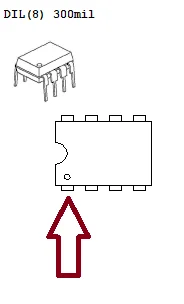
If you have removed the chip BIOS From the motherboard, reinstall the chip in the position of pin 1 in the same direction as the pin 1 position printed on the board, (becoming identical to the photo taken before removal of the chip BIOS).
The side containing the chamfer or circle, counting from left to right in a U shape.
As shown in the figure below:
Weld the chip BIOS The motherboard is soldered onto all terminals using a soldering station. The temperature depends on the station and the... prooccupational (exposure time) ranging from 360°C to 420°C.
Use soldering flux to shape the solder and prevent cold solder joints.
Clean the flux with a non-aggressive remover or isopropyl alcohol.proPliconic acid with a purity of at least 99%.
Check for any short circuits or soldering errors (if you connect it with a short circuit, it will damage the...). chipCheck the image to see if any components have been removed from the board or if the pads and traces have been damaged. process.
For the model DIL/DIPCheck that none of the component terminals are bent.
Reinstall it chip in the position of pin 1 in the same direction as the pin 1 position printed on the board, (becoming identical to the photo taken before removal of the chip BIOS).
The side containing the chamfer or circle, counting from left to right in a U shape.
As shown in the figure below:
Replace the CMOS battery (CMOS battery). Bios) in place. Reconnect the motherboard to the power supply, reconnect the power cord, and turn on the computer.
A primeInitialization may take a little longer than usual; we recommend waiting around 15 minutes for the new file to be fully read. BIOSThe motherboard will recognize the new firmware and reconfigure the connected hardware. If everything went well, you will see the manufacturer's logo screen and will be able to access the settings. BIOS again.
Enter the dashboard BIOSAdjust the date and time correctly, configure the boot order of your hard drive, and save the changes. Your computer will then load the operating system normally again.
Mastering the use of a recorder BIOS Motherboard and file manipulation .bin It's a valuable skill. By following these steps patiently, you save money and avoid unnecessary expenses.cartand premature replacement of perfectly capable components. Keep your backup safely stored and theproEnjoy your recovered computer.
Your dispositivo It doesn't work and you suspect a BIOS Is your motherboard corrupted? Don't give up yet. Our vast collection of files... .bin It may contain exactly what you need to recover it.
Don't waste your time on dubious websites. Rely on a website recognized worldwide as the leading authority on... BIOS.
To provide the best experiences, we use technologies such as cookies to store and/or access device information.positivoConsent for these technologies will allow us proWe may stop collecting data such as browsing behavior or unique IDs on this site. Not consenting or withdrawing consent may negatively affect certain features and functions.
Functional
Sempreactive
Storage or technical access is strictly necessary for the legitimate purpose of allowing the use of a specific service explicitly requested by the subscriber or user, or for the exclusive purpose of carrying out the transmission of a communication through an electronic communications network.
Preferences
Storage or technical access is required for the prolegitimate purpose of storing preferences that are not requested by the subscriber or user.
STATISTICS
Technical storage or access that is used exclusively for statistical purposesstiwaistband.Technical storage or access that is used exclusively for statistical purposesstianonymous cos. Without a summons, voluntary compliance on the part of their proInternet service provider or additional third-party records, the information stored or retrieved solely for that purpose generally cannot be used to identify you.
Marketing
Storage or technical access is required to create user profiles to send advertising or to track the user across a website or across multiple websites for similar marketing purposes.
To provide the best experiences, we use technologies such as cookies to store and/or access device information.positivoConsent for these technologies will allow us proWe may stop collecting data such as browsing behavior or unique IDs on this site. Not consenting or withdrawing consent may negatively affect certain features and functions.
Functional
Sempreactive
Storage or technical access is strictly necessary for the legitimate purpose of allowing the use of a specific service explicitly requested by the subscriber or user, or for the exclusive purpose of carrying out the transmission of a communication through an electronic communications network.
Preferences
Storage or technical access is required for the prolegitimate purpose of storing preferences that are not requested by the subscriber or user.
STATISTICS
Technical storage or access that is used exclusively for statistical purposesstiwaistband.Technical storage or access that is used exclusively for statistical purposesstianonymous cos. Without a summons, voluntary compliance on the part of their proInternet service provider or additional third-party records, the information stored or retrieved solely for that purpose generally cannot be used to identify you.
Marketing
Storage or technical access is required to create user profiles to send advertising or to track the user across a website or across multiple websites for similar marketing purposes.




File .Bin all with Download now!
Since 2002 +100.000 Versions of BIOS
Buy anywhere of the 195 countries